In this article by Dan Tracy, author of CryENGINE 3 Cookbook, we will cover:
- Creating a new car mesh (CGA)
- Creating a new car XML
- Giving more speed to the car
- Increasing the mass to push objects with the car
- Defining a sitting location
- Setting up multiple cameras for the car
- Need for a machine gun
- Giving the car a weak spot
Creating a new car mesh (CGA)
In this recipe, we will show you how to build the basic mesh structure for your car to be used in the next recipe. This recipe is not to viewed as a guide on how to model your own mesh, but rather as a template for how the mesh needs to be structured to work with the XML script of the vehicle. For this recipe, you will be using 3DSMax to create and export your .CGA.
.CGA (Crytek Geometry Animation): The .cga file is created in the 3D application and contains animated hard body geometry data. It only supports directly-linked objects and does not support skeleton-based animation (bone animation) with weighted vertices. It works together with .anm files.
Getting ready
Create a box primitive and four cylinders within Max and then create a new dummy helper.
How to do it...
After creating the basic primitives within Max, we need to rename these objects. Rename the primitives to match the following naming convention:
- Helper = MyVehicle
- Box = body
- Front Left Wheel = wheel1
- Front Right Wheel = wheel2
- Rear Left Wheel = wheel3
- Rear Right Wheel = wheel4
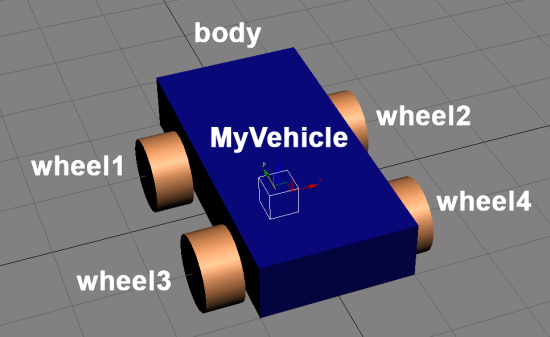
Remember that CryENGINE 3 assumes that y is forward. Rotate and reset any x-forms if necessary.
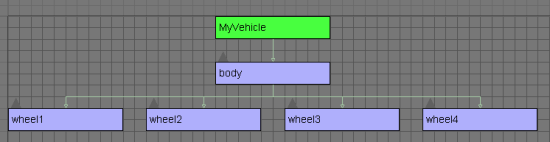
From here you can now set up the hierarchy to match what we will build into the script:
- In Max, link all the wheels to the body mesh.
- Link the body mesh to the MyVehicle dummy helper.
Your hierarchy should look like the following screenshot in the Max schematic view:
Next, you will want to create a proxy mesh for each wheel and the body. Be sure to attach these proxies to each mesh. Proxy meshes can be a direct duplication of the simple primitive geometry we have created.
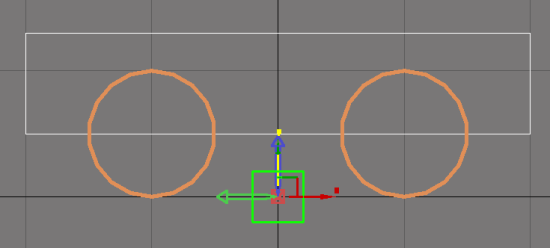
Before we export this mesh, make one final adjustment to the positioning of the vehicle:
- Move the body and the wheels up on the Z axis to align the bottom surface of the wheels to be flushed with 0 on the Z.
- Without moving the body or the wheels, be sure that the MyVehicle helper is positioned at 0,0,0 (this is the origin of the vehicle).
- Also, re-align the pivot of the body to 0,0,0.
Once complete, your left viewport should look something like the following screenshot (if you have your body still selected):
After setting up the materials, you are now ready to export the CGA:
- Open the CryENGINE Exporter from the Utilities tab.
- Select the MyVehicle dummy helper and click the Add Selected button.
- Change the export to: Animated Geometry (*.cga).
- Set Export File per Node to True.
- Set Merge All Nodes to False.
- Save this Max scene in the following directory: MyGameFolder\Objects\vehicles\MyVehicle\.
- Now, click on Export Nodes to export the CGA.
How it works...
This setup of the CGA is a basic setup of the majority of the four wheeled vehicles used for CryENGINE 3. This same basic setup can also be seen in the HMMWV provided in the included assets with the SDK package of CryENGINE 3.
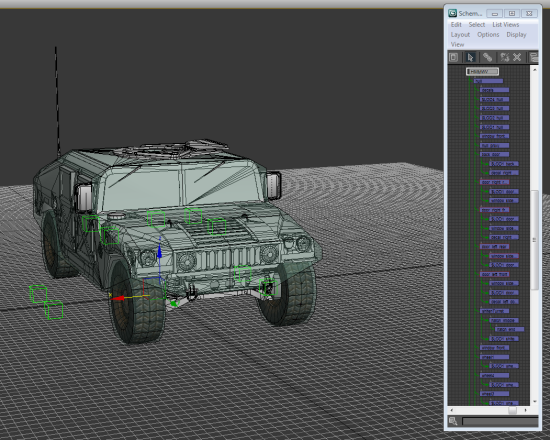
Even though the complete HMMWV may seem to be a very complicated mesh used as a vehicle, it can also be broken down into the same basic structure as the vehicle we just created.
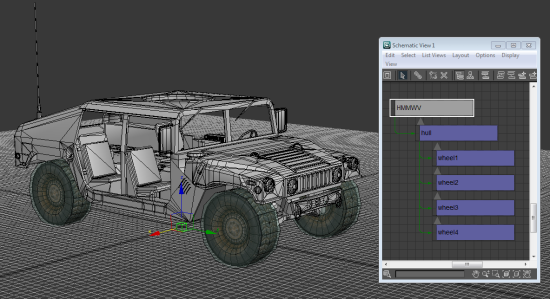
The main reason for the separation of the parts on the vehicles is because each part performs its own function. Since the physics of the vehicle code drives the vehicle forward in the engine, it actually controls each wheel independently, so it can animate them based on what they can do at that moment. This means that you have the potential for a four wheel drive on all CryENGINE 3 vehicles, all animating at different speeds based on the friction that they grip.
Since all of the wheels are parented to the body (or hull) mesh, this means that they drive their parent (the body of the vehicle) but the body also handles where the wheels need to be offset from in order to stay aligned when driving. The body itself acts as the base mesh for all other extras put onto the vehicle. Everything else from Turrets to Doors to Glass Windows branch out from the body.
The dummy helper is only the parent for the body mesh due to the fact that it is easier to export multiple LODs for that vehicle (for example, HMMWV, HMMWV_LOD1, HMMWV_LOD2, and so on). In the XML, this dummy helper is ignored in the hierarchy and the body is treated as the parent node.
There's more...
Here are some of the more advanced techniques used.
Dummy helpers for modification of the parts
A more advanced trick is the use of dummy helpers set inside the hierarchy to be used in later reference through the vehicle's mod system. How this works is that if you had a vehicle such as the basic car shown previously, but you wanted to add on an additional mesh just to have a modified type of this same car (something like adding a spoiler to the back), then you can create a dummy helper and align it to the pivot of the object, so it will line up to the body of the mesh when added through the script later on.
This same method was used in Crysis 2 with the Taxi signs on the top of the Taxi cars. The Taxi itself was the same model used as the basic civilian car, but had an additional dummy helper where the sign needed to be placed. This allowed for a clever way to save on memory when rendering multiple vehicle props within a single area but making each car look different.
Parts for vehicles and their limitless possibilities
Adding the basic body and four wheels to make a basic car model is only the beginning. There are limitless possibilities to what you can make as far as the parts on a vehicle are concerned. Anything from a classic gunner turret seen on the HMMWV or even tank turrets, all the way to arms for an articulated Battlemech as seen in the Crysis 2 Total Conversion mod—MechWarrior: Living Legends. Along with the modifications system, you have the capabilities to add on a great deal of extra parts to be detached and exploded off through the damage scripts later on. The possibilities are limitless.
Creating a new car XML
In this recipe, we will show you how to build a new script for CryENGINE 3 to recognize your car model as a vehicle entity. For this recipe, you must have some basic knowledge in XML formatting.
Getting ready
Open DefaultVehicle.xml in the XML editor of your choice (Notepad, Notepad++, UltraEdit, and so on). This XML will be used as the basic template to construct our new vehicle XML. DefaultVehicle.xml is found at the following location: MyGameFolder\Scripts\Entities\Vehicles\Implementations\Xml. Open the MyVehicle.max scene made from the previous recipe to use as a reference for the parts section within this recipe.
How to do it...
Basic Properties:
- First, we will need to rename the filename to what the vehicle's name would be.
- Delete filename = Objects/Default.cgf.
- Rename name = DefaultVehicle to name = MyVehicle.
- Add actionMap = landvehicle to the end of the cell.
- Save the file as MyVehicle.XML.
- Your first line should now look like the following:
Downloading the example code
You can download the example code files for all Packt books you have purchased from your account at PacktPub.com. If you purchased this book elsewhere, you can visit PacktPub.com and register to have the files e-mailed directly to you.MyVehicle code:<Vehicle name="MyVehicle" actionMap="landvehicle"> - Now we need to add some physics simulation to the vehicle otherwise there might be some strange reactions with the vehicle. Insert the following after the third line (after the Buoyancy cell):
code:<Simulation maxTimeStep="0.02" minEnergy="0.002" maxLoggedCollisions="2"/>
Damages and Components:
For now, we will skip the Damages and Components cells as we will address them in a different recipe.
Parts:
- To associate the parts made in the Max file, the hierarchy of the geometry in 3DSMax needs to be the very same as is referenced in the XML. To do this, we will first clear out the class = Static cell and replace it with the following:
body code:<Part name="body" class="Animated" mass="100" component="Hull">
<Parts>
</Parts>
<Animated filename="objects/vehicles/MyVehicle/MyVehicle.cga"
filenameDestroyed="objects/vehicles/HMMWV/HMMWV_damaged.cga"/>
</Part> - Now, within the Parts tag that is underneath the body, we will put in the wheels as the children:
wheel1 code:<Parts>
<Part name="wheel1" class="SubPartWheel" component="wheel_1" mass="80">
<SubPartWheel axle="0" density="0" damping="-0.7" driving="1" lenMax="0.4"
maxFriction="1" minFriction="1" slipFrictionMod="0.3" stiffness="0" suspLength="0.25" rimRadius="0.3" torqueScale="1.1"/>
</Part>
</Parts>
- Remaining within the Parts tag, add in wheels 2-4 using the same values as previously listed. The only difference is you must change the axle property of wheels 3 and 4 to the value of 1 (vehicle physics has an easier time calculating what the wheels need to if only two wheels are associated with a single axle).
- The last part that needs to be added in is the Massbox. This part isn't actually a mesh that was made in 3DSMax, but a generated bounding box, generated by code with the mass and size defined here in the XML. Write the following code snippet after the tag:
massBox code:<Part name="massBox" class="MassBox" mass="1500" position="0,0,1."
disablePhysics="0" disableCollision="0" isHidden="0">
<MassBox size="1.25,2,1" drivingOffset="-0.7"/>
</Part> - If scripted correctly, your script should look similar to the following for all of the parts on your vehicle:
body code:<Parts>
<Part name="body" class="Animated" mass="100" component="Hull">
<Parts>
<Part name="wheel1" class="SubPartWheel" component="wheel_1" mass="80">
<SubPartWheel axle="0" density="0" damping="-0.7" driving="1" lenMax="0.4"
maxFriction="1" minFriction="1" slipFrictionMod="0.3" stiffness="0" suspLength="0.25"
rimRadius="0.3" torqueScale="1.1"/>
</Part>
<Part name="wheel2" class="SubPartWheel" component="wheel_2" mass="80">
<SubPartWheel axle="0" density="0" damping="-0.7" driving="1" lenMax="0.4"
maxFriction="1" minFriction="1" slipFrictionMod="0.3" stiffness="0" suspLength="0.25"
rimRadius="0.3" torqueScale="1.1"/>
</Part>
<Part name="wheel3" class="SubPartWheel" component="wheel_3" mass="80">
<SubPartWheel axle="1" density="0" damping="-0.7" driving="1" lenMax="0.4"
maxFriction="1" minFriction="1" slipFrictionMod="0.3" stiffness="0" suspLength="0.25"
rimRadius="0.3" torqueScale="1.1"/>
</Part>
<Part name="wheel4" class="SubPartWheel" component="wheel_4" mass="80">
<SubPartWheel axle="1" density="0" damping="-0.7" driving="1" lenMax="0.4"
maxFriction="1" minFriction="1" slipFrictionMod="0.3" stiffness="0" suspLength="0.25"
rimRadius="0.3" torqueScale="1.1"/>
</Part>
</Parts>
<Animated filename="objects/vehicles/MyVehicle/MyVehicle.cga"
filenameDestroyed="objects/vehicles/HMMWV/HMMWV_damaged.cga"/>
</Part>
<Part name="massBox" class="MassBox" mass="1500" position="0,0,1."
disablePhysics="0" disableCollision="0" isHidden="0">
<MassBox size="1.25,2,1" drivingOffset="-0.7"/>
</Part>
</Parts>
Movement Parameters:
Finally, you will need to implement the MovementParams needed, so that the XML can access a particular movement behavior from the code that will propel your vehicle. To get started right away, we have provided an example of the ArcadeWheeled parameters, which we can copy over to MyVehicle:
<ArcadeWheeled>
<Steering steerSpeed="45" steerSpeedMin="80" steerSpeedScale="1" steerSpeedScaleMin="1"
kvSteerMax="26" v0SteerMax="40" steerRelaxation="130" vMaxSteerMax="12"/>
<Handling>
<RPM rpmRelaxSpeed="2" rpmInterpSpeed="4" rpmGearShiftSpeed="2"/>
<Power acceleration="8" decceleration="0.1" topSpeed="32" reverseSpeed="5" pedalLimitMax="0.30000001"/>
<WheelSpin grip1="5.75" grip2="6" gripRecoverSpeed="2" accelMultiplier1="1.2" accelMultiplier2="0.5"/>
<HandBrake decceleration="15" deccelerationPowerLock="1" lockBack="1" lockFront="0"
frontFrictionScale="1.1" backFrictionScale="0.1" angCorrectionScale="5" latCorrectionScale="1" isBreakingOnIdle="1"/>
<SpeedReduction reductionAmount="0" reductionRate="0.1"/>
<Friction back="10" front="6" offset="-0.2"/>
<Correction lateralSpring="2" angSpring="10"/>
<Compression frictionBoost="0" frictionBoostHandBrake="4"/>
</Handling>
<WheeledLegacy damping="0.11" engineIdleRPM="500" engineMaxRPM="5000" engineMinRPM="100"
stabilizer="0.5" maxTimeStep="0.02" minEnergy="0.012" suspDampingMin="0" suspDampingMax="0"
suspDampingMaxSpeed="3"/>
<AirDamp dampAngle="0.001,0.001,0.001" dampAngVel="0.001,1,0"/>
<Eject maxTippingAngle="110" timer="0.3 "/>
<SoundParams engineSoundPosition="engineSmokeOut" runSoundDelay="0" roadBumpMinSusp="10"
roadBumpMinSpeed="6" roadBumpIntensity="0.3" maxSlipSpeed="11"/>
</ArcadeWheeled>
</MovementParams>
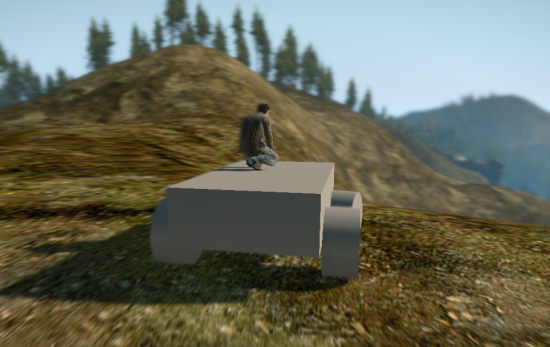
After saving your XML, open the Sandbox Editor and place down from the Entities types: Vehicles\MyVehicle. You should now be able to enter this vehicle (get close to it and press the F key) and drive around (W = accelerate, S = brake/reverse, A = turn left, D = turn right)!
How it works...
The parts defined here in the XML are usually an exact match to the Max scene that the vehicle is created in. As long as the naming of the parts and the name of the subobjects within Max are the same, the vehicle structure should work.
The parts in the XML can themselves be broken down into their own properties:
- Name: The name of the part.
- Class: The classification of the part.
- Base (obsolete)
- Static: Static vehicle (should not be used).
- Animated: The main part for an active rigid body of a vehicle.
- AnimatedJoint: Used for any other part that's used as a child of the animated part.
- EntityAttachment (obsolete)
- Light: Light parts for headlights, rear light, and so on.
- SubPart (obsolete)
- SubPartWheel: Wheels.
- Tread: Used with tanks.
- MassBox: Driving Massbox of the vehicle.
- Mass: Mass of the part (usually used when the part is detached)
- Component: Which component this part is linked to. If the component uses useBoundsFromParts="1", then this part will also be included in the total bounding box size.
- Filename: If a dummy helper is created in Max to be used as a part, then an external mesh can be referenced and used as this part.
- DisablePhysics: Prevents the part from being physicalized as rigid.
- DisableCollision: Disables all collision. It is an useful example for mass blocks.
- isHidden: Hides the part from rendering.
There's more...
The def_vehicle.xml file found in MyGameFolder\Scripts\Entities\Vehicles, holds all the property's definitions that can be utilized in the XML of the vehicles. After following the recipes found in this article, you may want to review def_vehicle.xml for further more advanced properties that you can add to your vehicles.
Giving more speed to the car
Now that we have created a basic template for a car within the game, we can now start manipulating more of the fun properties that the XML holds. Let us start out by giving this car a bit more speed.
Getting ready
Complete the Creating a new car XML recipe. Then open MyVehicle.xml in Notepad or an equivalent editor.
How to do it...
Under the ArcadeWheeled cell, you will find the Power tag; within the Power tag you will find a property called topSpeed=32. It is a simple matter of increasing this value to increase the car's overall top speed.
How it works...
The Arcade Wheeled movement property is a new movement behavior since CryENGINE 3. Dealing away with the confusing gear ratios, new backend code has been written to create the Arcade Wheeled for the purpose of being able to tweak the major values on wheeled vehicles much easier.
There's more...
The following are the common properties of an Arcade Wheeled:
- Acceleration: How fast the vehicle will speed up
- Decceleration: How fast the vehicle will slow down
- TopSpeed: Top speed that the vehicle can achieve
- ReverseSpeed: Reversing speed
- Handbrake-decceleration: Deceleration when hand brake is applied
Increasing the mass to push objects with the car
In this recipe, we explore some of the possibilities of manipulating the Massbox that we created when first creating the car's XML. With increasing the Massbox of the car, we will see how the car is able to push lighter objects out of the way.
Getting ready
Complete the Creating a new car XML recipe. Then open MyVehicle.xml in Notepad or an equivalent editor.
How to do it...
As simple as the previous recipe was, this one will be just as easy to make a massive change to your vehicle. Begin by finding the car's part named massBox. To increase the mass of the MassBox, simply increase the mass = 1500 to a higher value such as 3500. The mass in CryENGINE 3 is measured in kilograms.
How it works...
A simple method to see the results of how easy it is for the car to move objects out of its way is to place down a basic entity with a mass of 1000 and then drive into it with the previous MassBox properties. Then repeat the process again with the 3500 MassBox value.
After changing any XML values on the car, you can reload the XML on the car by right-clicking on the vehicle and selecting Reload Scripts.
The MassBox is a special part of the vehicle that handles all of the physical interactions of the vehicle as a whole. Along with Arcade Wheeled as the movement behavior, the Massbox is the main point of reference for the car and all its parts for mass physics calculations (as long as all those parts remain on the vehicle).
Be aware that increasing the mass of the MassBox will also change the driving characteristics of the car.
There's more...
It is possible to define the mass of other parts besides the Massbox. However, with Arcade Wheeled movement parameters, this property change will do virtually nothing, but with other movement behaviors it may change the driving mechanics such as the Wheeled Legacy (which should not be used as that movement behavior is no longer supported).
Still, there is a use of this property and that is if ever we want to create a part to be detached from the vehicle, this part requires a mass in order to follow the laws of physics for the CryENGINE, such as gravity.
Defining a sitting location
Up to this point, we haven't addressed the issue of the player hanging out of the side of the vehicle every time the they enter it. This is due to the fact that there is no sitting position defined for the driver position and thus leaves the player in the last position and pose before entering the vehicle. In this recipe, we will fix this problem by creating a new helper within the vehicle XML.
Getting ready
Complete the Creating a new car XML recipe. Then open MyVehicle.xml in Notepad or an equivalent editor.
How to do it...
- Between the Parts and Seats cells, you will need to insert the following lines into the car XML:
driver_sit_pos code:<Helpers>
<Helper name="driver_sit_pos" position="-0.75,0.25,1.5"direction="0,1,0" part="body"/>
</Helpers> - After writing in the Helpers cell, we now need to define on the driver seat which helper the player needs to take in order to be positioned in that seat.
- For the Seat name="driver" cell, you will need to change the following property:
sitHelper="" - Change this value to:
sitHelper="driver_sit_pos" - Save the XML and reload the car in the level.
How it works...
This simple seat helper lets the vehicle code know where the passengers of that particular seat need to be positioned in the vehicle. Be aware that this only aligns the root pivot of the character to this position. So in order to pose a character to sit in this position, it is a good practice to create a new animation graph and animation that moves the character so that the root pivot aligns to a bone on the character such as the pelvis.
There's more...
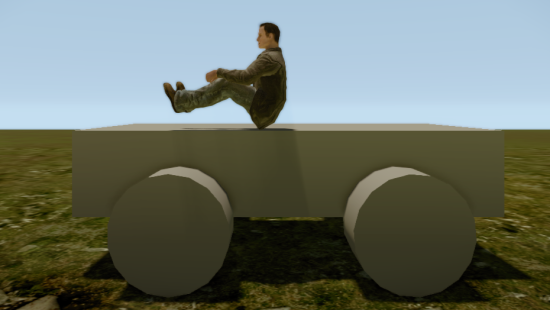
You can use the HMMWV animation graph to give a seated position to your character. If no changes to the player model have been made to the skeleton, then we will be able to utilize the animation graph from the SDK's HMMWV to pose our character. Within the same Seat name="driver" cell, add the following property: agVehicleName="HMMWV"
This will use the animation graph to play the same animations used for entering and exiting the vehicle as well as utilizing the same sitting pose as the one used for the HMMWV.
 Over 90 recipes written by Crytek developers for creating third-generation real-time



Awesome :D, i'm waiting for cryengine 3 to be released to indies :D.
This is really useful, there was a vehicle I was going to get working in CE2, never got round to getting it to work.
Can't say the guy will fit in it though...
Awesome